Shopify Add to Cart Button Not Working? 8 Common Causes and How to Fix Them
Is your Shopify Add to Cart button not working? Explore 8 common causes, practical troubleshooting steps, and ways to test your cart experience.
A Clutch Verified Shopify agency
Rated 5.0 out of 5 stars by our clients
A customer finds a product they like, chooses the right size or colour, and clicks Add to Cart. But nothing happens.
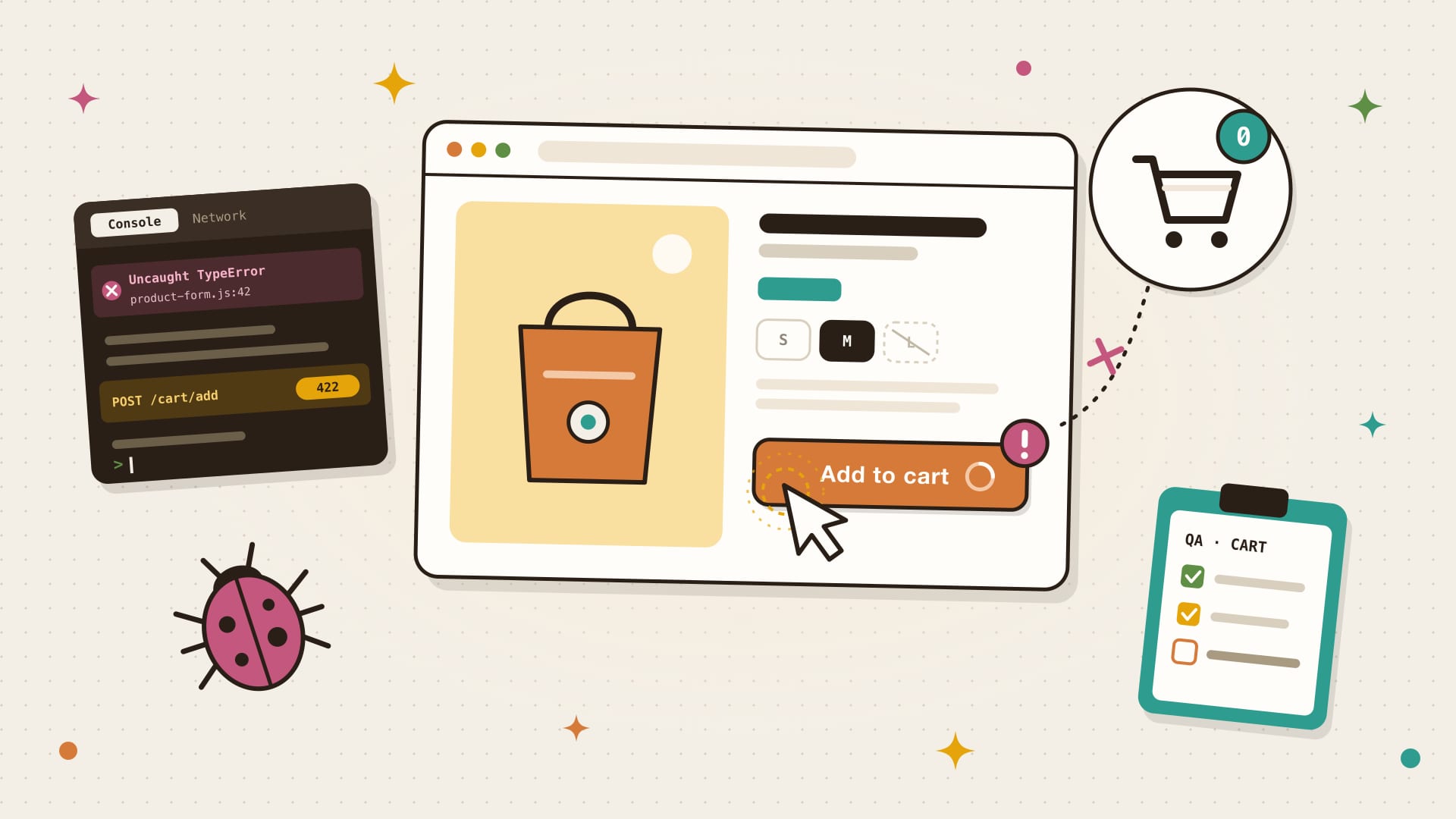
The button may appear to work but fail to add the product. The cart drawer might not open. A loading spinner may keep turning, or the page may display an error.
For a Shopify store, this is more than a small website bug. If shoppers cannot add products to their carts, they may leave without completing their purchase.
When a Shopify Add to Cart button is not working, the cause is not always obvious. It could be a product or variant setting, a theme customisation, an app conflict, or a JavaScript error. The right fix depends on what is happening behind the storefront.
In this guide, we’ll cover eight common reasons a Shopify Add to Cart button may stop working, how to investigate each one, and what to test before considering the issue resolved.
First, identify what is actually failing in the cart
Before changing theme code or uninstalling apps, note the exact behaviour. Different symptoms point to different parts of the shopping flow. Pick the one you’re seeing below to watch it play out and jump to the causes worth reading first.
Size L
Try to reproduce the issue on a specific product and device. Record the page URL, selected variant, steps taken, and any error message. This information makes troubleshooting much more efficient.
8 common causes of Shopify Add to Cart problems
Every add to cart travels the same short path: the shopper picks a variant, the click is handled, the product form sends the variant and quantity, Shopify accepts the cart request, and the theme updates the drawer and cart count. Each cause below breaks a different part of that path.
- 1 Variant Shopper picks a variant
- 2 Click Button click is handled
- 3 Form Form sends variant ID and quantity
- 4 Request Cart request is accepted
- 01 5 Drawer Drawer and count update
1. A JavaScript error is stopping the button from working
Many Shopify themes use JavaScript to handle product forms, variant selection, cart updates, and cart drawers. If a script fails, the Add to Cart interaction may stop before the product reaches the cart.
Errors can appear after a theme edit, an app installation, or a change to custom scripts.
How to investigate:
- Open the affected product page in Chrome.
- Right-click and select Inspect, then open the Console tab.
- Reload the page and look for red error messages.
- Click Add to Cart and check whether new errors appear.
- Note the error text and the file or script mentioned.
A console error is a clue, not automatic proof of the cause. Some errors are unrelated to the cart, so check whether the error occurs at the same time as the failed interaction.
How to fix it: Review recently changed theme code and app scripts. If the error points to a custom script, investigate the relevant code before removing or changing it. Test any fix on a duplicate theme first.
2. A Shopify app is conflicting with the theme
Apps can add scripts or modify parts of the storefront to provide features such as upsells, bundles, subscriptions, sticky Add to Cart buttons, product options, and cart drawers.
Two apps that change the same area may interfere with each other. An app can also become incompatible with a theme customisation or another app update.
How to investigate:
- Check whether the problem began after an app was installed or updated.
- Review apps that affect product pages, product forms, variants, or the cart.
- Check the app’s setup instructions and support documentation.
- Where practical, test in a duplicate theme or controlled preview environment.
How to fix it: Identify the app responsible before making changes. Follow the app developer’s removal or troubleshooting guidance, and check for leftover code if the app was previously uninstalled. Our guide to removing leftover Shopify app code covers how to find it safely. Avoid disabling several apps at once on a live store, as this makes the cause harder to identify and may disrupt other features.
3. The product variant is unavailable or not selected correctly
Products with sizes, colours, materials, or other options rely on correct variant selection. If a customer has not selected a required option, or the selected variant is unavailable, the store may prevent the item from being added.
A custom variant selector can also display one option while submitting a different variant ID. Shopify variant selector issues like this are easy to miss, because the page looks correct.
How to investigate:
- Open the product page and test each option combination.
- Check whether the selected variant is available for sale.
- Confirm that the displayed price and availability change when options change.
- Test combinations that are out of stock as well as those that are available.
- Check whether the issue affects one product or several products using the same template.
How to fix it: Correct product and inventory settings where necessary. If the selector is custom-built, review how it updates the selected variant and the product form’s variant ID. Make sure unavailable combinations are clearly presented and cannot be submitted accidentally.
4. The product form or theme code has been customised incorrectly
Shopify themes use product forms to submit the selected product variant and quantity to the cart. Custom Liquid, JavaScript, or app-generated markup can interfere with that form.
For example, a custom button may look like the standard Add to Cart button but not submit the product form correctly. A change to form attributes, button types, or event handlers can also break the interaction.
How to investigate:
- Check whether the issue started after a theme code change.
- Compare the affected product template with an unmodified version of the theme, if available.
- Review custom product-form markup and related JavaScript.
- Check whether the button is associated with the correct product form.
How to fix it: Restore or correct the product form implementation using the theme’s expected structure. Avoid copying snippets from another theme without checking compatibility. If the store has extensive customisations, have a Shopify developer review the product form and its event handling.
5. The cart drawer or AJAX cart is failing
Some Shopify themes add products without a full page reload. They use AJAX requests to update the cart and then open a cart drawer or mini-cart.
If the cart request succeeds but the drawer does not update, you get the classic Shopify cart drawer not opening problem. Customers may think the Add to Cart button is broken even though the product has been added.
How to investigate:
- Click Add to Cart once.
- Check whether the cart count changes.
- Open the cart page directly and see whether the product is there.
- If you are comfortable using browser developer tools, inspect the Network tab for the cart request and its response.
- Check the theme’s cart drawer scripts and any apps that modify the cart.
How to fix it: Determine whether the failure is in the cart request, the cart response handling, or the drawer display. Correct the relevant theme or app integration. Do not assume that replacing the entire cart drawer is necessary.
6. A sticky Add to Cart button or overlay is blocking clicks
Sticky purchase bars, promotional pop-ups, cookie banners, chat widgets, and other floating elements can overlap the product form.
On mobile, a transparent or incorrectly positioned element may sit above the button and intercept taps. The button can look normal while being impossible to click.
How to investigate:
- Test the page with pop-ups dismissed.
- Scroll to the product form and check whether another element overlaps it.
- Try the page at different viewport widths.
- Check whether the problem appears only when a sticky bar or chat widget is visible.
How to fix it: Correct the overlapping element’s positioning, dimensions, and stacking order. Review CSS properties such as position and z-index, but do not simply increase the button’s z-index without checking the layout. Make sure the page remains usable on smaller screens. Our mobile checkout conversion playbook covers the other mobile blockers worth checking while you’re there.
7. Inventory, quantity rules, or product availability are preventing the add
A product may be unavailable because its inventory is depleted, its variant is not available for sale, or the requested quantity does not meet the store’s rules.
Bundles, subscriptions, and product customisation apps can add further conditions to the purchase process.
How to investigate:
- Check the selected variant’s inventory and availability settings.
- Review whether the product is published to the Online Store sales channel.
- Test with a quantity of one.
- Check any minimum or maximum quantity rules.
- Review bundle, subscription, or product-options app settings.
How to fix it: Correct the product availability or inventory configuration, or adjust the relevant app rules. If a product is intentionally unavailable, show a clear message and an appropriate alternative rather than leaving customers with an unresponsive button.
8. A recent theme update or third-party script has changed the behaviour
Theme updates can introduce changes to product forms, cart behaviour, or JavaScript dependencies. Third-party scripts may also change independently of your theme.
A store can therefore develop a cart issue even when nobody has deliberately edited the Add to Cart button.
How to investigate:
- Check the store’s recent theme and app changes.
- Compare the current theme with a previous working version.
- Review app release notes if the issue followed an update.
- Test the same product in a clean copy of the theme, where possible.
- Check whether the problem is limited to one browser or device.
How to fix it: Isolate the change that introduced the issue and apply a compatible correction. Do not publish an older theme or roll back multiple changes without checking what else would be affected. If a theme update is the trigger, our guide on updating a Shopify theme without losing customizations shows how to carry your edits across safely.
A step-by-step Shopify Add to Cart troubleshooting process
If you’re not sure where to start, follow this sequence. It helps narrow down the cause without making unnecessary changes to your live store.
- Reproduce the issue: Record the product, selected variant, device, browser, and exact steps.
- Check product availability: Confirm the product and selected variant can be purchased.
- Test another product: See whether the problem affects one product, one template, or the entire store.
- Test another device or browser: Check whether the issue is limited to a particular environment.
- Review recent changes: Look at theme edits, app installations, app updates, and custom scripts.
- Check browser errors: Use the Console and Network tabs to look for errors related to the interaction.
- Isolate integrations carefully: Use a duplicate theme or a controlled test to investigate app and theme conflicts.
- Apply one change at a time: This makes it easier to identify which change resolves the problem.
- Retest the full purchase flow: Confirm that the product, variant, quantity, price, and cart behaviour are all correct.
Important: test safely before changing your live theme
Before editing Liquid, JavaScript, or CSS, duplicate your published theme and work in the copy. Keep a record of the original code and changes made.
Avoid deleting app code or changing cart scripts simply because they look unfamiliar. Some code may support other storefront features. If you are unsure what a script does, ask the app developer or a Shopify developer to review it first.
How to test your Add to Cart button after fixing it
A button that works once on your own computer is not necessarily fixed for every shopper. Retest the full interaction across relevant products, devices, and scenarios.
Use this quality assurance checklist and tick each check as you go.
If your store uses subscriptions, bundles, gift options, or custom product fields, include those scenarios in your tests too. To catch the next break before customers do, add a cart test to your monthly Shopify maintenance checklist.
When should you hire a Shopify developer to fix Add to Cart?
Some Add to Cart problems can be resolved through product settings or app configuration. Others require technical investigation.
Consider getting help from a Shopify developer when:
- The button fails across multiple products or templates.
- The browser console shows persistent JavaScript errors.
- Custom Liquid or JavaScript changes are involved.
- Your cart drawer or AJAX cart behaves inconsistently.
- Multiple apps modify the product form or cart.
- The issue appears only on certain devices or under specific conditions.
- Previous fixes have caused other storefront features to break.
A developer can trace the interaction from the product form through the cart request and theme response, identify the source of the failure, and test the correction without introducing avoidable changes elsewhere.
How Monkeyman can help
At Monkeyman, we help Shopify merchants troubleshoot storefront issues and improve the experience customers have when browsing and buying.
Our Shopify development team can investigate problems involving product forms, variant selectors, cart drawers, theme customisations, app conflicts, and mobile storefront behaviour.
Whether your Add to Cart button has stopped responding or your cart experience needs a broader review, we can help identify the issue and recommend a practical fix.
If you need ongoing technical support rather than one-off troubleshooting, explore our Shopify maintenance plans, starting at $299/month. Plan inclusions and support limits vary by plan.
Having an issue with your Shopify store? Get in touch with Monkeyman and tell us what you’re experiencing.
Final thoughts
Your Add to Cart button is one of the most important interactions in your Shopify store. When it stops working, customers can lose confidence and abandon their shopping journey before they reach checkout.
The key is to avoid guessing. Identify the exact symptom, check product and variant settings, review recent changes, and investigate theme scripts and app integrations systematically.
Once the issue is fixed, test the complete cart experience across devices and product scenarios. A reliable purchase journey depends on more than a button that responds to a click.
If you need help troubleshooting a Shopify storefront issue, Monkeyman can help you investigate the problem and get your store experience back on track.