How to Update Your Shopify Theme Without Losing Your Customizations
Shopify's theme update keeps your editor settings but drops your code edits. Here's what carries over, what doesn't, and the safe six-step way to update before it bites you.
A Clutch Verified Shopify agency
Rated 5.0 out of 5 stars by our clients
Your theme developer ships a new version. It fixes a bug you’ve been living with and adds a section you want. Then you remember the size-guide tweak, the custom badge and the app snippet someone pasted in last year, and you wonder whether pressing Update will wipe them out.
The honest answer is: some of it survives, some of it doesn’t, and Shopify won’t list which is which for you. This guide explains exactly what an in-admin theme update keeps, what it leaves behind, and the six-step process we use to update customised stores without a broken product page on launch day.
What happens when you update a Shopify theme?
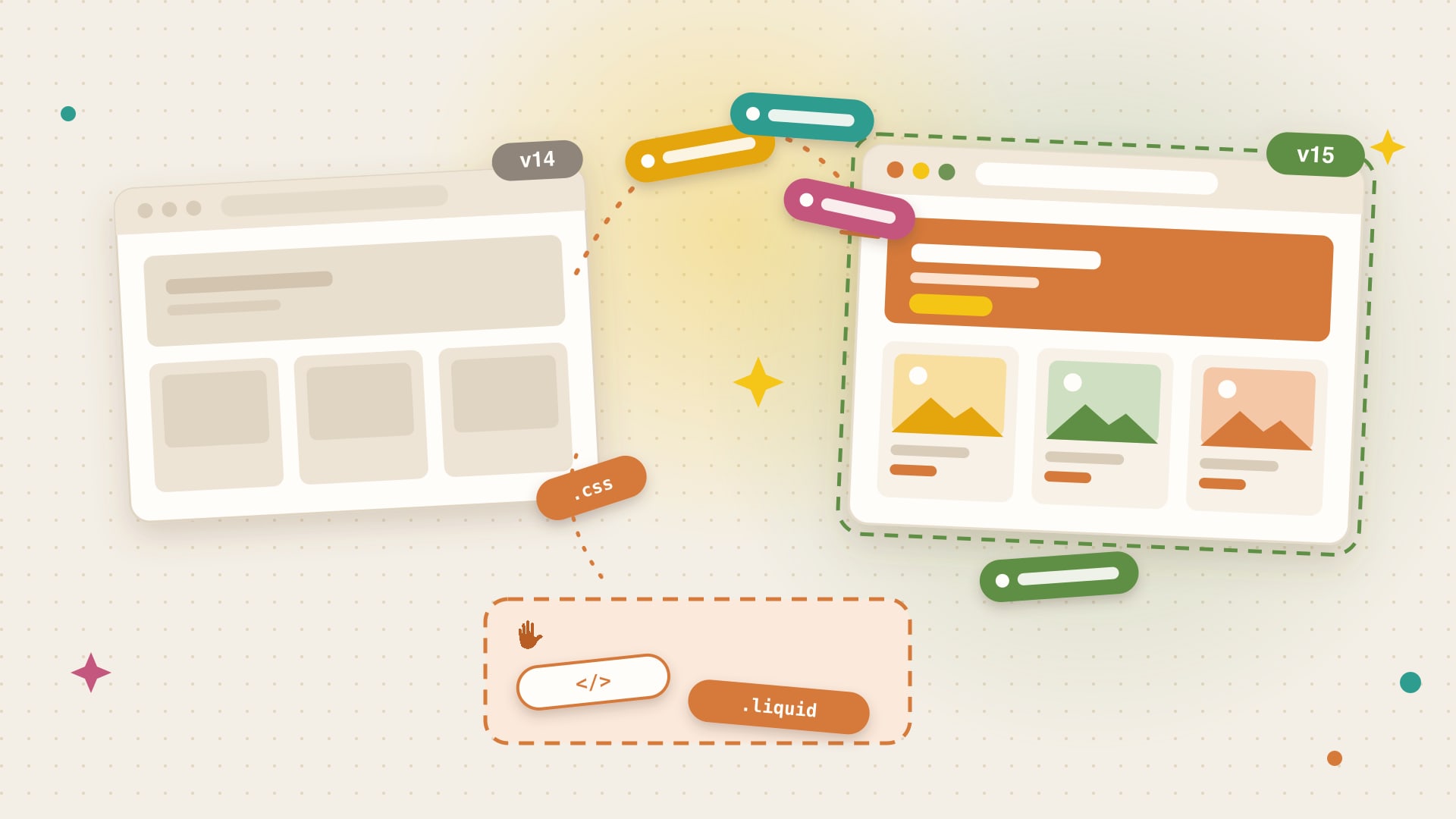
When a newer version of a Theme Store theme is available, Shopify shows it on the theme in Online Store > Themes. Updating doesn’t touch your live store. Shopify adds the new version to your theme library as an unpublished copy and copies your theme editor customizations into it.
That’s the part people miss. The update is split into two kinds of change:
- Editor customizations come across. These are the things you set in the theme editor: colours, fonts, the logo, which sections and blocks are on each page, their settings, and app blocks.
- Code customizations don’t. Anything changed by editing the theme’s files, in Edit code or by a developer, is replaced by the developer’s new files.
In other words, Shopify carries your choices across, not your code. Try it below.
What survives a theme update, and what doesn’t
Here’s the same sort in table form, with what to do about each.
| Customization | Survives the update? | What to do |
|---|---|---|
| Colours, fonts, logo, global theme settings | Yes | Check a few pages; new versions sometimes add or rename settings |
| Sections and blocks added in the theme editor | Yes | Check layouts, since a redesigned section can look different |
| App blocks and app embeds | Yes | Open each page and confirm the app still renders |
| Code in a Custom Liquid section | Yes | Check it still works against the new markup |
| Edited Liquid in section or snippet files | No | Re-apply each edit to the new files |
| CSS or JavaScript added to theme files | No | Move it into your own file, then link it in the new version |
| Old app code pasted into theme.liquid | No | Reinstall the app or switch to its app block |
| New section or snippet files you created | No | Copy the files into the new version |
Two things catch people out. First, a code edit can be tiny, one line in a product template, and still matter: a hidden payment icon, a delivery message, a tracking script. Second, apps installed before Online Store 2.0 often added code straight into the theme. If you’ve ever uninstalled an app, some of that code may still be there. We cover how to find it in our guide to removing leftover Shopify app code.
Why some themes have no update button
In-admin updates only exist for themes from the Shopify Theme Store, and only when a newer version has been released. A theme bought from another marketplace is updated by downloading a new version from its developer, which brings none of your customizations across, so plan for a bigger porting job.
Older “vintage” themes built before Online Store 2.0 have no update path to a 2.0 theme at all. Moving from one is effectively a rebuild, and it’s worth weighing against a proper redesign.
How to update a Shopify theme safely, step by step
This is the process we follow on maintenance clients. It works whether the theme has two code edits or two hundred.
1. Find out what’s been customised
Before you touch anything, build a list of every code change on the live theme. If a developer or agency made them, ask for it. If nobody knows, compare the live theme against a clean copy:
- Download the live theme file from Online Store > Themes > … > Download theme file.
- Pull a clean copy of the same version, or use Shopify’s GitHub integration or Shopify CLI if your theme is already in version control.
- Compare the two. Every difference is a customization you’ll need to port.
Write the list down, with the file and a one-line reason for each change. It becomes your porting checklist and saves hours next time.
2. Back up the live theme
Duplicate the live theme and keep the theme file you downloaded. The duplicate is a working rollback inside Shopify. The file is a copy outside it in case anything goes badly wrong. Shopify’s theme library holds a limited number of themes, so delete old drafts you no longer need first.
3. Add the update as a new copy
Use the update option on the theme card. Shopify adds the new version as an unpublished theme with your editor customizations already applied. Rename it with the version and date so nobody publishes the wrong copy.
Read the developer’s release notes now. They tell you which sections changed, which settings were renamed and whether anything you rely on was removed.
4. Re-apply your code changes
Work through your list from step 1 on the new copy, never on the live theme. As you go, make the next update easier:
- Put custom code in your own files. A clearly prefixed snippet or section, like
mm-size-guide.liquid, is much easier to carry across than edits scattered through the developer’s files. - Prefer the editor where you can. Small tweaks can often live in a Custom Liquid section or the editor’s custom CSS setting, which survive updates.
- Swap pasted app code for app blocks. If an app now offers an app block or app embed, use it and remove the old snippet.
5. Test the preview like a customer
Preview the unpublished copy and go through the store the way a shopper would, on desktop and on a phone. Tick each check as you go.
If speed slipped, compare what loads on each version. New versions sometimes add scripts or larger images, and our Shopify speed playbook covers how to find and fix the usual culprits.
6. Publish at a quiet time and keep the rollback
Publish when traffic is lowest, usually early morning on a weekday in your main market. Keep the old theme in your library for at least a couple of weeks. If something breaks, publishing it again is an instant rollback.
For the first week, watch add-to-cart rate, checkout starts and conversion rate against the week before. A drop that lines up with the switch is a strong sign something on the new version needs a look.
How often should you update your Shopify theme?
You don’t need every release the day it lands. A sensible rhythm for most stores:
- Read the release notes whenever a new version appears.
- Update promptly for bug fixes, security issues or a feature you’ll actually use.
- Bundle the rest every one to three months, so each update is a small, testable change.
- Don’t fall several major versions behind. Big jumps change more sections at once and turn an afternoon of porting into a project.
The Black Friday rule
Don’t publish a theme update in the run-up to Black Friday and Cyber Monday. If you can’t finish testing at least two weeks before peak, freeze the theme and schedule the update for a quiet month after the holidays. The new section can wait. A broken cart during your busiest week can’t.
When to get help
Updating a lightly customised theme is a manageable afternoon. It gets harder when nobody knows what’s been changed, when old apps left code behind, or when the store depends on custom features for checkout, subscriptions or bundles.
That’s the work our Shopify maintenance plans cover: theme and app updates applied to a duplicate theme, code changes ported and logged, the preview tested before anything goes live, and a rollback ready if it’s needed. If your store is due an update and you’d rather not find out what breaks yourself, start with a free store audit.